This change retires CPL for eLearning delivery and replaces it with a RiskProof-native experience. It’s designed to make administration simpler and improve reliability and ease of use for everyone who manages or completes training.
As part of our ongoing commitment to improving the customer experience, we reviewed feedback and service performance and identified opportunities to strengthen eLearning—especially around usability, administration and consistency of access.
By integrating eLearning into RiskProof, we can address these areas directly while keeping training and compliance information together.
What’s changed
- eLearning is now delivered within RiskProof (CPL is no longer used for delivery).
- A new page ‘My Training’ is now available for colleagues enrolled to elearning courses
- eLearning records are easier to access and manage.
- Courses are delivered through higher-quality, Shield-built content.
- Training is integrated into RiskProof to support easier management across locations.
What you need to do
To complete eLearning in RiskProof, each colleague must have a RiskProof user account linked to their colleague record.
If a colleague has been assigned a training plan but does not have an email address (user account), they will appear with an Action required prompt on the Manage colleagues screen. Select Edit next to the colleague to open the Edit colleague page, then enter an email address so the colleague can be enrolled on eLearning courses and access RiskProof.
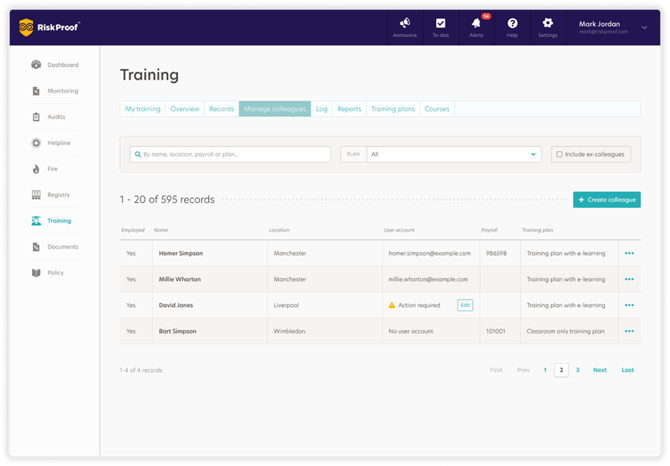
When creating or editing a colleague, enter an email address in the new Email Address field. If an account does not already exist, RiskProof will create or link a user account as needed so the colleague can access training. Follow the step-by-step instructions for creating and editing colleagues below.
How to Create a colleague (learner) (Training module)
Use this process to add a colleague so you can assign and enrol training
Before you start: You must have the Manage Colleagues permission assigned to your user role.
Steps
- Sign in to RiskProof.
- Go to Training.
- Select Manage colleagues.
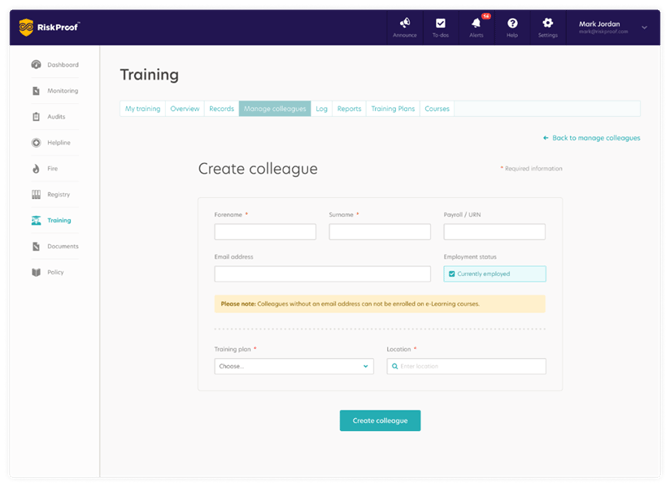
- Select + Create colleague.
- Enter the required details:
- First name, Surname, Training plan, Location,
- Email address (required for access to e-learning)
What happens next?
- The email address is used to link the colleague to a RiskProof user account so they can access RiskProof and complete training via My Training Records.
- If the email address matches an existing RiskProof account in your organisation, the colleague will be linked to that existing account.
- If the email address is already linked to another colleague, you’ll be prompted to enter a different email address.
- If a new account is created, the colleague will receive an email to set (reset) their RiskProof password.
How to edit a colleague’s details?
Use this process to update a colleague’s details so you can assign and enrol training.
Before you start: You must have the Manage Colleagues permission. To change a colleague’s email address, you also need the Link Colleague to User Account permission.
Steps
- Sign in to RiskProof.
- Go to Training.
- Select Manage colleagues.
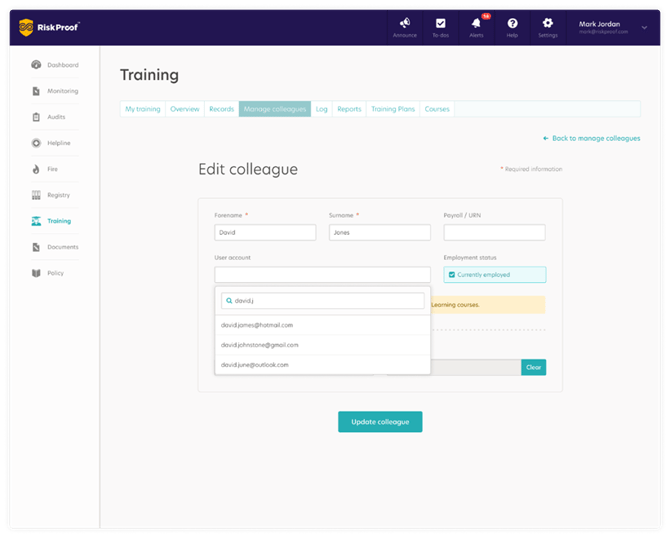
- Find the colleague you want to update, then select the More actions (three dots) button.
- Select Edit.
- Make the required changes
- Select Update colleague to save.
What happens next?
- If you add an email address, it is used to link the colleague to a RiskProof user account so they can access RiskProof and complete training via My Training Records.
- If the email address matches an existing RiskProof account in your organisation (and it is not linked to another colleague), the colleague will be linked to that account.
- If the email address is already linked to another colleague, you’ll be prompted to enter a different email address.
- If a new account is created, the colleague will receive an email to set (reset) their Riskproof colleague password
Locating Training certificates
If you need to access a colleagues training certificate :
- Sign in to RiskProof.
- Go to Training.
- Select the Records tab.
- Select the location.
- Find the colleague whose records you want to view, then open their training record.
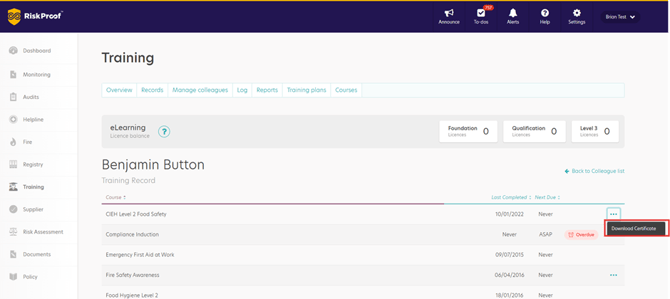
- Next to the course, select the Actions menu.
- Select Download certificate.