
How to ensure reliable checklist syncing
When you finish a checklist:
- Select ‘Mark as Complete’ as usual
- Keep the app open for a short period after completing the checklist
- Leave the app open on your screen (in the foreground)
- Avoid closing the app immediately or switching to other apps straight away
Giving the app a moment to sync ensures your checklist is fully saved. Closing the app too quickly can interrupt the process and cause delays.
How to check whether your checklist has synced
You can confirm whether a checklist has synced by checking its status in the mobile app. This can be done by:
- Completing a checklist
- Navigating to the closed checklist view by pressing the ‘Show Closed’ button
- Once the checklist has been located in the list:
-
If a cloud icon is displayed next to the checklist name, then this means that the checklist is currently waiting to be synced
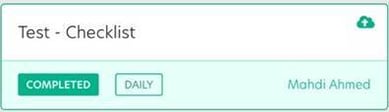
-
If a cloud icon is not displayed, this means that the checklist has synced successfully
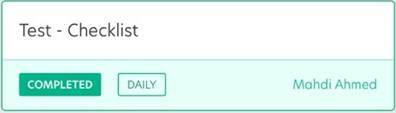
-
You can also open the checklist and see that it is in a sync pending state via a label
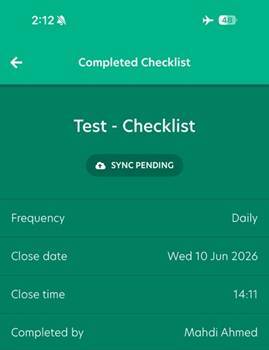
This helps you understand whether your data has been fully sent and recorded.
Visibility of unsynced checklists
The number of checklists that are pending sync can be seen within the app itself:
- Navigate to the Checklists page within the app
- A purple badge can be seen at the top of the screen (highlighted below)

- The number next to the badge indicates how many checklists are waiting to be synced
- When there are no checklists pending sync, then the badge will not be visible within the app
Ensuring your connection supports checklist syncing
In some cases, a checklist may be completed in an area with a limited or no internet connection. When this happens, the mobile app will switch to offline mode.
You can still complete the checklist as normal, and the app will indicate that it has not yet synced:
- Once a checklist is completed, a message appears at the top of the screen informing the user that the checklist will sync once they are back online
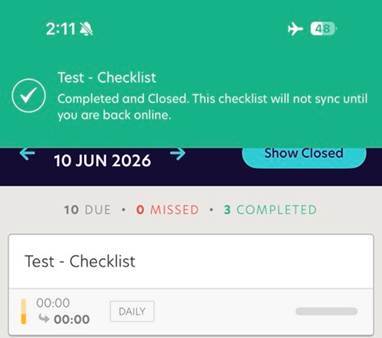
- The cloud icon will appear next to the checklist name in the list
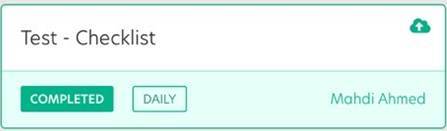
- Opening the checklist will show a ‘Sync Pending’ label
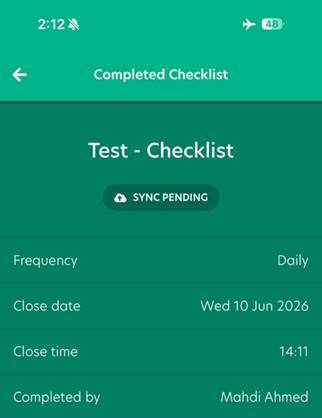
Once the device reconnects to the internet and the checklist syncs successfully, the cloud icon will disappear automatically. It is also important to note that checklists will sync back to the original dates when they were completed.
Forcing a checklist sync
If you have checklists that are still pending sync, you can manually trigger a sync by:
- Navigating to the ‘Closed’ checklists page
- Click on the ‘Show Closed’ button
- Pull down on the page to refresh
- All checklists that have not synced should have a cloud indicator next to it. Once that cloud indicator disappears that means the checklist has successfully synced.
Helpful tips
- Ensure the device being used has a good internet connection
- A checklist can only sync if the app is open and online
- If the app has been running in the background for a while, you can trigger a new sync by fully closing it and reopening it.