
How do I start a course?
Use this process to begin an eLearning course you have been assigned to.
Before you start: You must be enrolled on a training plan that includes an eLearning course. Your Training Administrator or RiskProof Administrator assigns courses.
Steps- Sign in to RiskProof.
- Go to Training.
- Select the My training records tab.
- Find the course you want to start, then select Start course.
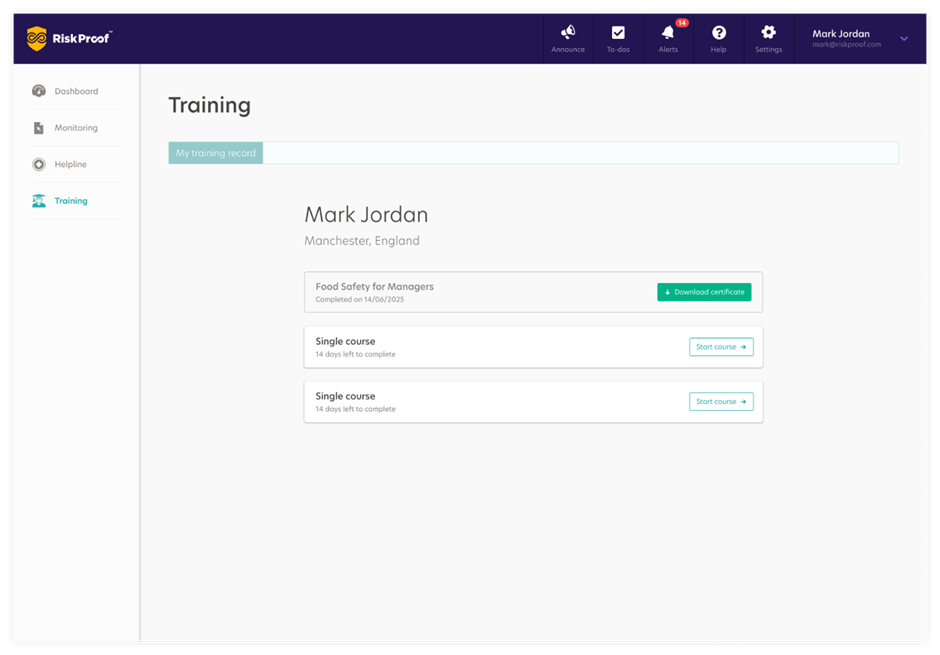
The course opens in a new browser tab.
To continue a course you’ve already started, follow the same steps and select Continue instead of Start course.
What happens next?
- If the course does not open, check that your browser allows pop-ups/new tabs for RiskProof.
- Your progress is saved automatically, so you can return later and select Resume.
- Once you complete the course (and pass, if required), your status updates in My training records.
How do I view my certificate?
Use this process to view your certificate.
Before you start: You must have completed the eLearning course and met the pass requirement (if applicable).
Steps
- Sign in to RiskProof.
- Go to Training.
- Select the My training records tab.
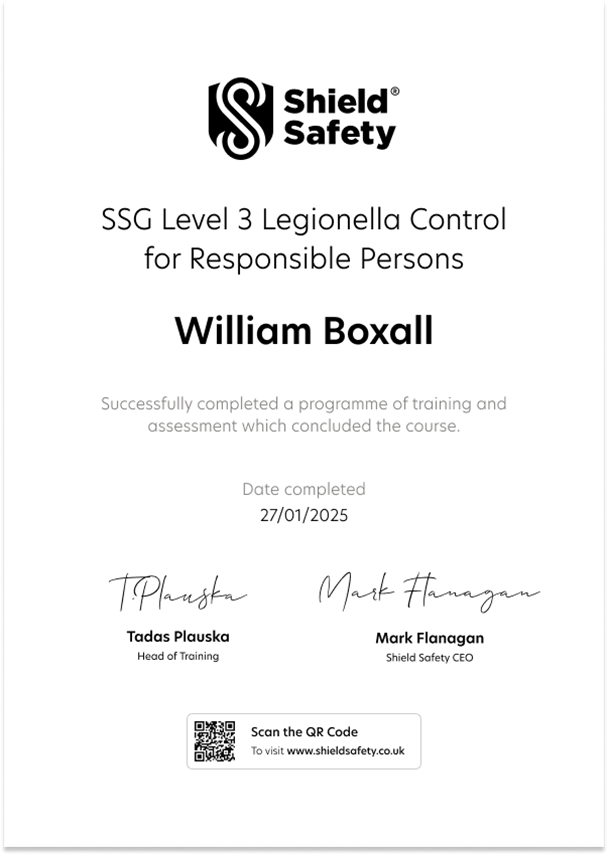
- Select Download certificate.
A PDF copy of your certificate downloads to your device.
What happens if?
- If the download does not start, check your browser’s download settings and any pop-up blockers.
- You can download the certificate again at any time from My training records.
- Save the PDF somewhere accessible so you can share it if requested.